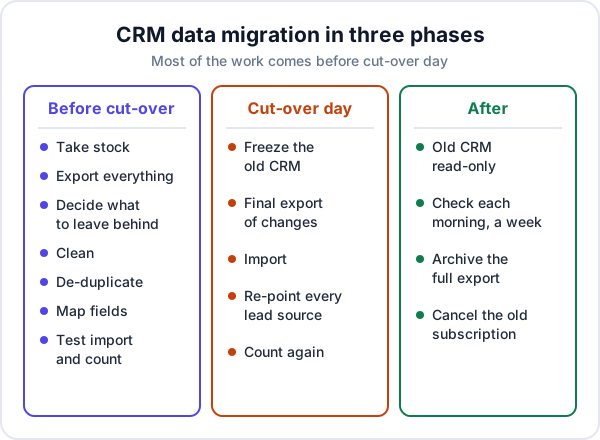
CRM data migration is moving your customers, open leads, products and history out of one system and into another, without losing records, links between them, or a day of enquiries. For a small business it comes down to eight steps: take stock of what you have, back it all up, decide what to leave behind, clean, de-duplicate, map fields, run a test import, and switch over on one planned day.
The import button is the easy part. What goes wrong is everything around it: duplicates multiplied, notes detached from their customers, phone numbers mangled by Excel, and an IndiaMART feed still pointing at the old system a week later. This checklist is for a business switching from one CRM to another, or moving to a custom one. If you are starting from a spreadsheet, moving from Excel to a CRM covers that simpler case column by column.
The CRM data migration checklist
- Take stock of every kind of record and where it lives.
- Export everything once and keep that full export untouched.
- Decide what not to migrate.
- Clean phone numbers, names, sources, dates and values.
- De-duplicate, with one rule for which record wins.
- Map fields, including owners, stages and links between records.
- Test import into a trial or copy, and count what arrived.
- Cut over on one day: freeze, final export, import, re-point lead sources.
Step 1: take stock of what you have
Before exporting anything, list every kind of record in the old system and decide, roughly, what happens to it. This table is the plan for the rest of the job.
| Record | Usually | Watch out for |
|---|---|---|
| Customers | Migrate all | GSTIN, address and city in the right fields |
| Open leads | Migrate, with owner, stage and next follow-up date | A lead with no next date is a lead nobody will call |
| Closed leads, won or lost | Recent ones only | Lost reasons, if you want the report to carry on |
| Products and price list | Migrate | GST rate and HSN or SAC code on each item |
| Open quotations | Migrate, or re-send from the new system | Validity dates that have already passed |
| Past invoices | Keep as history, not as new invoices | Invoice numbers must not change |
| Notes and call history | Recent ones, or a summary | They often export as a separate file |
| Attachments | Archive | Often left out of an ordinary export |
| Automation, reports, templates | Rebuild by hand | No CRM imports another CRM’s rules |
Step 2: export everything once, and keep it
Take one full export of every module before you change anything, and store it somewhere that is not the old CRM: a folder in your own drive, named with the date. Everything after this is done on copies.
Expect several files, not one. Most CRMs export module by module. Zoho CRM, for example, exports one module at a time, with Notes as its own choice in the module list. A full Zoho data backup includes file-upload fields and comes as zipped CSV files, but leaves out emails and data that came in through integrations, and its download link expires after seven days. Read your own CRM’s export page before you cancel anything, because each one leaves out something different.
Make sure each export includes the old system’s record ID. You will need it to keep notes, quotations and contacts attached to the right customer later.
Step 3: decide what not to migrate
This is the step that decides whether the new CRM feels clean or cluttered on day one. Leave these in the archive:
- Dead leads lost or untouched for more than about a year. They bury the live ones.
- Rows with no phone number and no email. There is nothing to act on.
- Test records, staff numbers and suppliers that ended up in the lead list.
- Old automation and reports. Rebuild the two or three you actually use; let the rest go.
- Email threads. They stay in your mailbox, where they already are.
- Closed invoices as live invoices. Importing them into a billing module can give them new numbers in the new series, which is a mess for GST. Keep the PDFs and the export; your accountant already has the books.
Archived does not mean deleted: the dated export can still be searched in a minute.
Step 4: clean the data
Clean on the exported CSV files, column by column. The details for phone numbers, names, sources and values are in our spreadsheet-to-CRM guide; they apply just as much to a CRM export. Two traps catch people who open an export in Excel:
- Excel removes leading zeros and turns long numbers into scientific notation. Import the phone, GSTIN and ID columns as Text, or a landline with a 0 prefix loses it.
- Dates such as 03/04/2026 can be read as 3 April or 4 March. Pick one format, and check the format your new CRM expects before the import, not after.
Also standardise lead sources to a short list, so your lead source report carries on making sense in the new system.
Step 5: de-duplicate, with one rule
An old CRM that has been fed by IndiaMART, JustDial and hand entry for three years will hold the same person several times. Decide two things before you start merging.
The matching key. Many CRMs match on email. HubSpot, for example, uses email as the unique identifier for contacts when an import updates existing records. If your enquiries arrive with a phone number and no email, as most portal and WhatsApp leads do, email matching will miss the duplicates. Normalise phone numbers to one format first, then match on the phone number.
Which record wins. Usually the one with the most recent activity keeps its owner, stage and follow-up date. The other record’s second phone number goes into an alternate phone field, and its notes join the survivor’s. Write the rule down so two people merging do not apply two rules.
Step 6: map every field
Make a mapping sheet with three columns: old field, new field, and what changes on the way. A short example:
| Old field | New field | Change on the way |
|---|---|---|
| Contact Name | Name | Split “Mr. Patil (Sai Hardware)” into name and company |
| Mobile, Phone 2 | Phone, Alternate phone | Ten digits or +91 and ten digits, nothing else |
| Lead Status: Hot, Warm, Pending | Stage | Map each old status to one new stage, once |
| Owner (email) | Assigned to | The person must exist as a user first |
| Expected Revenue | Value (₹) | Plain number: “1.2L approx” becomes 120000 |
| Record ID | Legacy ID (a note or spare field) | Kept, so notes and quotations can be re-attached |
Values going into a drop-down must match its options exactly, including spelling and case. Owners must be added as users before the import, or the records arrive unassigned. And any field the new system does not have needs a decision: a custom field, a note, or the archive.
Step 7: run a test import and count
Import 20 rows of each record type into a trial account or a test copy. Open five of them and check every field landed where it should. Fix the mapping or the file, then import the full set into the test copy and count:
- Customers in the cleaned file, and customers in the new system
- Open leads per salesperson, before and after
- Total value of open leads, before and after
- Ten records you know well, checked end to end by the person who owns them
If the counts do not match, find out why before cut-over day. A difference of 40 records is usually one bad row format or one mapping, not 40 separate problems.
Step 8: cut-over day
Pick a quiet working day: not month-end, not the last week of your busy season, and not a day the owner is travelling. Then, in this order:
- Freeze the old CRM. Tell the team that from this hour nothing new goes into it.
- Take a final export of records created or changed since the test export, and clean them the same way.
- Import into the live system, using the mapping that worked in the test.
- Re-point every lead source. IndiaMART, JustDial, the website form and any ad forms must send to the new CRM. Send one test enquiry through each and check it arrives. This is the step most often forgotten, and enquiries keep landing in a system nobody opens.
- Count again against the numbers from step 7.
For the week after, make the old CRM read-only, check each morning that nothing new has appeared in it, and fix small mapping errors as people find them. Then save the dated full export in the archive and, once you are sure, cancel the old subscription. Getting the team to work in the new system every day is its own job; the CRM implementation guide has a two-week plan for it.
A worked example
Say an AC service company in Indore is leaving its old CRM after four years. The full export holds about 5,000 contacts, 2,600 leads, 900 notes in a separate file, and two years of invoices. (Made-up figures, for illustration.)
- About 1,800 contacts are real customers with a past job. They come across, with city and GSTIN where known.
- About 350 leads are open and touched in the last six months. They come across with owner, stage and next follow-up date.
- Around 400 contacts turn out to be duplicates once phone numbers are normalised; most had been entered once from JustDial and again by hand.
- Invoices stay in the archive as PDFs and the export. Only the outstanding ones are noted against the customer so collection carries on.
- The 900 notes are joined to customers through the old record ID, and the last three per customer go into one note.
The test import catches that “Warm” had been mapped to Qualified for one salesperson’s leads and to Contacted for another’s. Fixed in the mapping sheet, it costs ten minutes instead of a week of confused follow-ups.
Common CRM migration mistakes
- Migrating everything “just in case”, so the new CRM opens on 5,000 dead leads.
- Cleaning after the import, when every fix has to be made one record at a time.
- Losing the links between customers and their notes, quotations or sites, because the old record ID was not exported.
- Forgetting the lead sources, so new enquiries go to the old system for days.
- Cancelling the old CRM before checking the export, then finding the attachments were never in it.
Moving into Enkay CRM, or into a custom CRM
If you are moving into Enkay CRM, it imports CSV files of up to 2 MB, with templates showing the expected columns. Import is on the Business plan, and new signups get 90 days of Business features free, which is enough time for a migration. A lead needs only a phone number. If the same number appears on more than one lead, the lead page shows the others and merges them in one click. It does not import automation rules from another CRM, because it has no workflow builder to put them in, and exporting leads and customers to CSV works on every plan, so the data can always leave again.
If you are moving to a system built for you, migration should be in the written scope, not left to the last week. When Enkay Technologies builds a custom CRM, moving your customers, open leads, products and past invoices is part of the job: cleaned and de-duplicated first, imported into a test copy for your team to check, and only then moved to the live system.
Either way, CRM data migration is mostly a decision about what is worth keeping, followed by careful cleaning. Do those two well and the import itself is the shortest part of the day.
Frequently asked questions
How long does CRM data migration take for a small business?
For a few thousand records from one old system, plan about two weeks: a few days to export and take stock, a few days to clean, de-duplicate and map, a test import, then one cut-over day. The import itself takes minutes. Cleaning is what takes the time, and it is the part not to rush.
What data should I not migrate to a new CRM?
Leave behind dead leads older than about a year, test records, staff and supplier numbers, old reports, automation rules and email threads. Do not re-create closed invoices as new invoices in the new system, because they would get new numbers. Keep all of it in an archived export instead, where it can still be searched.
Can I move notes and call history to a new CRM?
Often, but not always into the same place. Many CRMs export notes as a separate file, linked to the record by an ID. If the new CRM cannot import notes, the usual fix is to combine the last few notes into one text column on each record, and keep the full history in the archive.
Should I run the old CRM and the new one together?
Keep the old one open, read-only, for a few weeks so people can look things up. Do not let anyone enter new leads or follow-ups in it. Two live systems is the most common way a migration quietly fails, because within days nobody knows which one is right.
Do I need to pay someone to migrate my CRM data?
Not for a few thousand records from one system; the steps in this checklist are enough. It is worth paying for help when data comes from several systems at once, when records are linked to each other (customers, sites, contracts, invoices), or when the new system is being built for you anyway.
Keep reading
Moving to a CRM built for your process?
On a custom CRM, moving your customers, open leads, products and past invoices is part of the scope: cleaned, tested in a copy, then moved live. The scoping call and written quote are free.